
QuickOPC User Interface Features
OPC Browsing Dialogs
With QuickOPC, you can write OPC client code that browses OPC data from your code programmaticaly, but you an also use a ready-made set of rich user interface (UI) components. The OPC browsing dialogs provide interactive viewing and selection features and make it very simple to integrate such functionality into your application.
You can simply drag on of the provided browsing dialog components from the Visual Studio Toolbox, optionally configure its properties, and then invoke the browsing with a single method call.
Browsing dialogs are available for OPC clients supporting OPC Unified Architecture, OPC Data Access, OPC Alarms&Events, and even for tasks that combine multiple specifications in one project. There are also "universal" browsing dialog components that can be configured to browse just about anything related to OPC. For the ultimate flexibility, you can also use individual browsing controls (see further below), and combine them with other controls on your form to achieve the desired functionality.
Useful links: Documentation / Knowledge Base
In total, there are 4 different dialogs available for OPC UA, and a separate set of 10 dialogs for OPC Classic.
OPC UA Dialog Examples
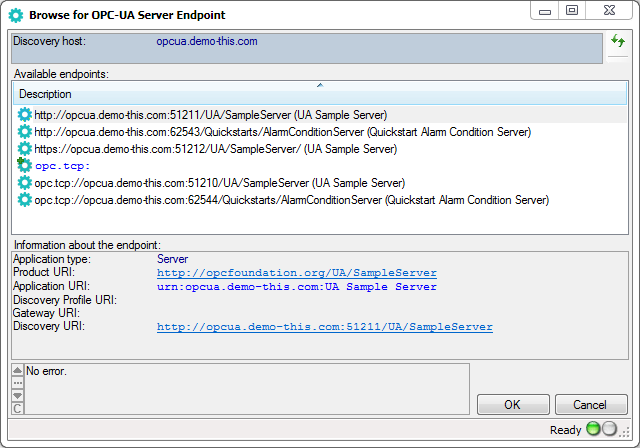
UAEndpointDialog: This dialog allows the user to select the OPC server and its endpoint interactively from the list of OPC Unified Architecture servers provided by a LDS (Local Discovery Server) installed on a machine.
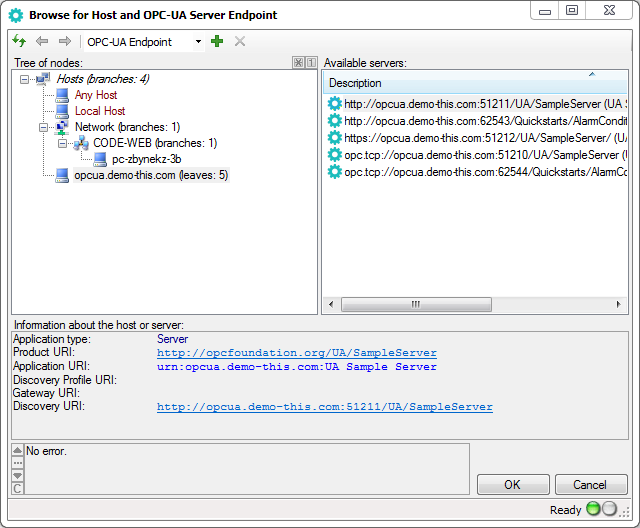
UAHostAndEndpointDialog: With this dialog, the user can select a host (computer) and an endpoint of OPC-UA server residing on it. This dialog box combines functions of the Computer Browser Dialog and OPC-UA Endpoint Dialog
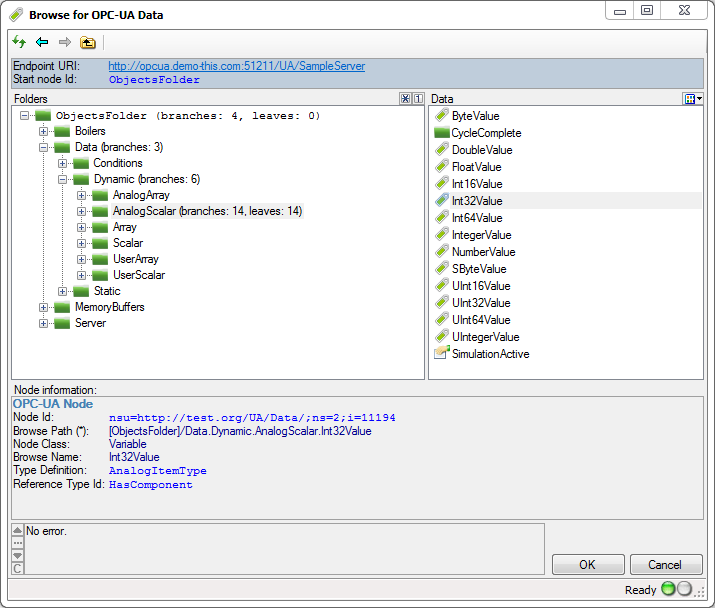
UADataDialog: This dialog allows the user to interactively select the OPC data node residing in a specific OPC Unified Architecture server. It also has a mode which allows the user to start the node selection by choosing the host and server endpoint first.
UABrowseDialog: A dialog with various OPC-UA elements from which the user can select. This dialog can be configured to serve many different purposes.
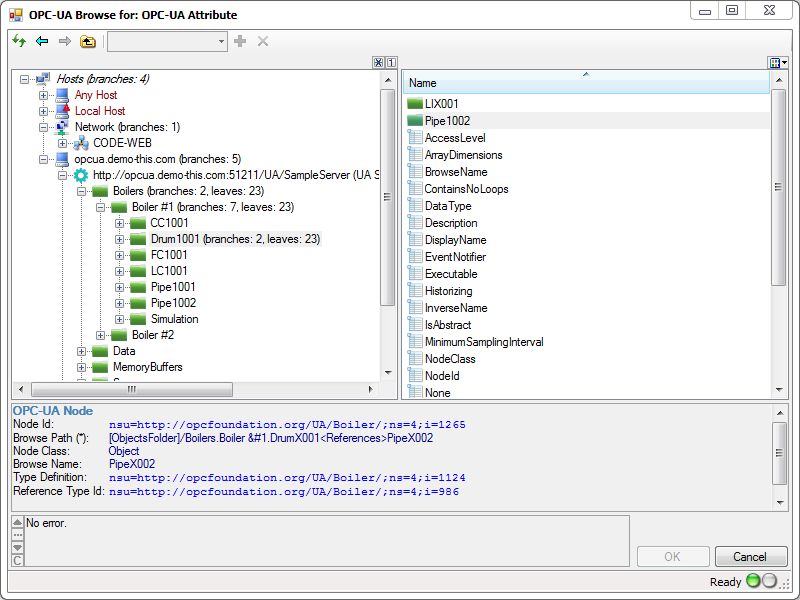
OPC Classic Dialog Examples
OpcServerDialog: A dialog box from which the user can select an OPC "Classic" server.
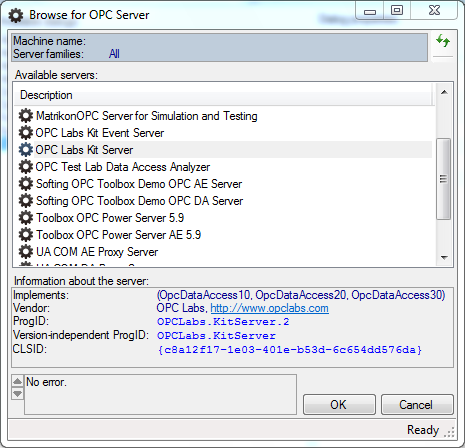
OpcComputerAndServerDialog: A dialog box from which the user can select a computer and an OPC server residing on it.
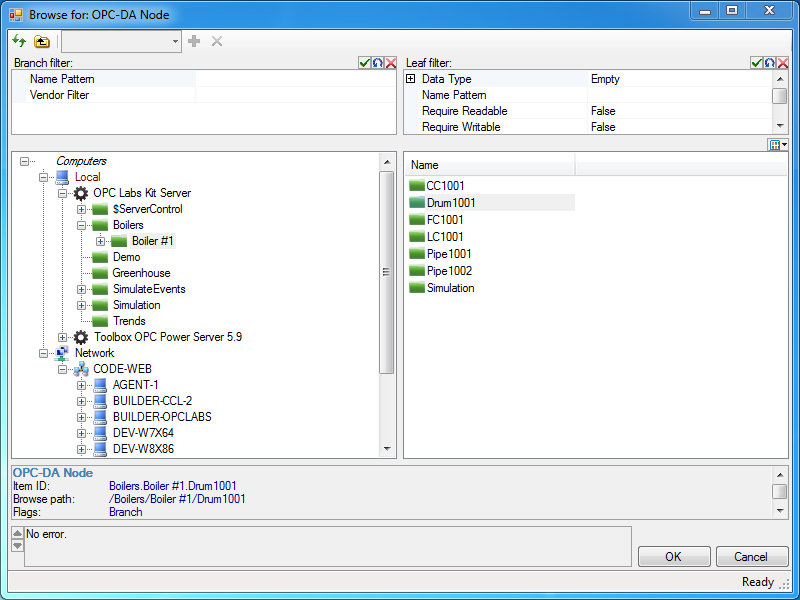
OpcBrowseDialog: A dialog with various OPC nodes from which the user can select. This dialog can be configured to serve many different purposes.
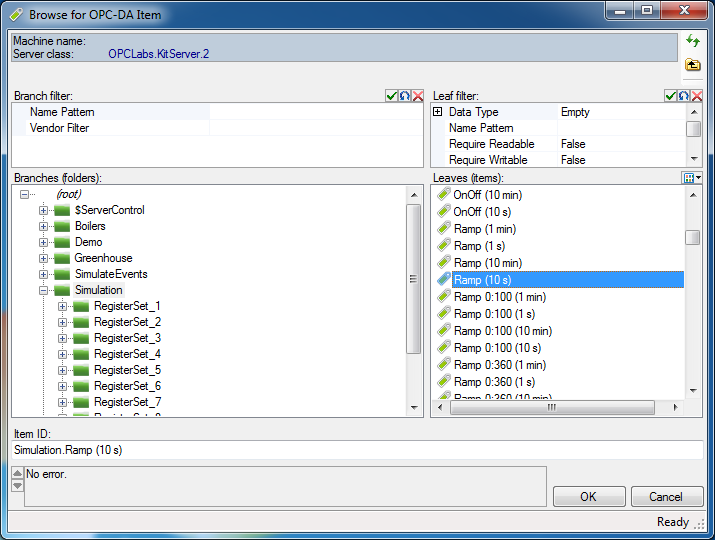
DAItemDialog: a dialog box from which the user can select an OPC Data Access item.
DAPropertyDialog: A dialog box from which the user can select an OPC Data Access property.
AEAreaOrSourceDialog: A dialog box from which the user can select OPC-A&E event areas or sources.
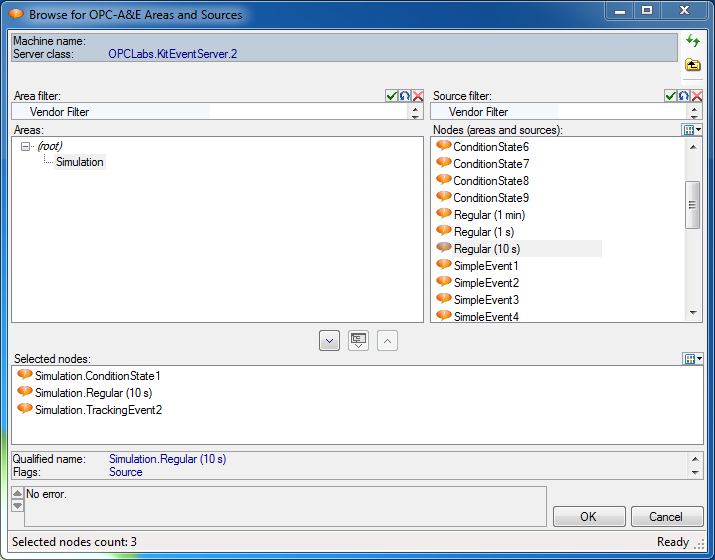
AECategoryDialog: A dialog box from which the user can select from OPC-A&E event categories provided by the OPC server.
AECategoryConditionDialog: A dialog box from which the user can select OPC-A&E category available on a specified event condition.
AEAttributeDialog: a dialog box from which the user can select OPC-A&E event attributes.
OPC Browsing Controls
With QuickOPC, you can create OPC client applications that allow the selection of OPC data (OPC browsing) to their end users. The OPC browsing controls provide interactive viewing and selection features that can be combined with other controls on the form to achieve the desired functionality.
You can simply drag on of the provided browsing control components from the Visual Studio Toolbox, optionally configure its properties, and it will automatically perform the OPC discovery and browsing, show results, and allow your users to select the OPC data they need.
Browsing controls support OPC Unified Architecture, OPC Data Access and OPC Alarms&Events. The functionality of the controls is some respect similar to the browsing dialogs. Unlike with the dialogs, you have full freedom in creating your own visual appearance and behavior of the form, in case that the standard browsing dialog is not enough, or when you need closer integration with other parts of your application.
Control Features
There are two different controls available: one control is for OPC UA, and then there is a separate control for OPC "Classic" (and OPC XML-DA). The control names are UABrowseControl and OpcBrowseControl, respectively.
- The controls can be configured to provide a tree view only, a list view only, or a combined tree view and list view.
- Browsing (discovery) is possible for computers (hosts), OPC server, nodes (items) inside the OPC server, OPC properties, OPC A&E alarm areas and sources, access paths, etc.
- When certain piece of information is not available by browsing, it can be entered manually. E.g. your user may add a known OPC UA or OPC XML-DA server by entering its URL, or a hidden computer, etc.
- Single-select or multi-select mode: you can allow the use to pick just one node, or a set of nodes (in the list view).
- When placed onto a designer surface, the controls display just simulated data, without loading your system with unwanted OPC accesses and processing. When you run your application, the controls obtain live OPC data. Alternatively, you can instruct the controls to display the simulated data in runtime mode as well (this is useful e.g. for user training in off-line scenarios).
Useful links: Documentation / Knowledge Base
Control Examples
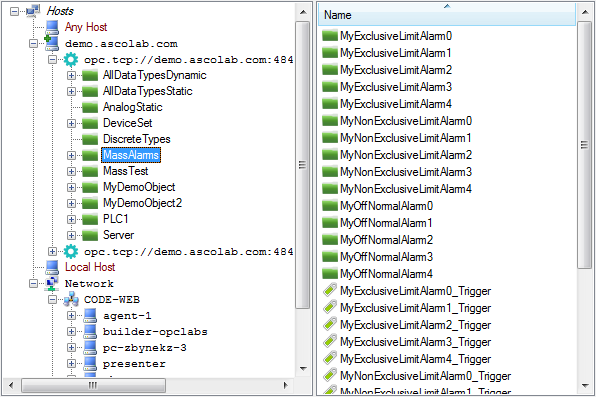
Examples of the controls in action are on the pictures below. Note that these are truly just examples; the flexibility of the controls allows many more combinations.
Tree And List Views:
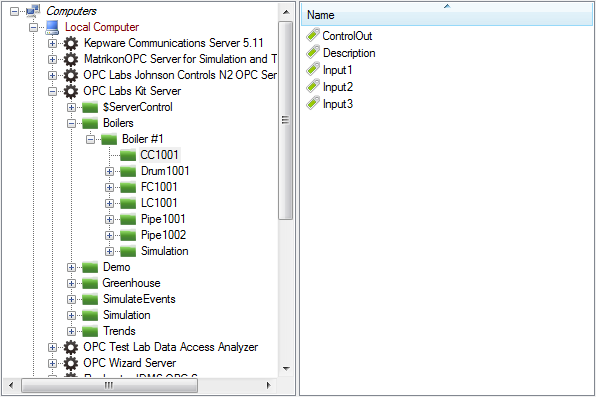
Tree View Only:
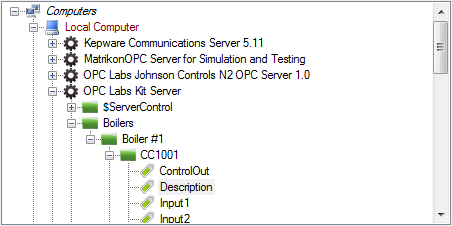
OPC Unified Architecture: