



Excel Connector
The Excel Connector allows you to set up a communication link between Excel and any OPC server. It is possible to subscribe to and view real-time data, and also write the data back. No programming, macros or add-ins are necessary. With just drag-and-drop or copy-and-paste, you can create Microsoft Excel sheets with live, animated OPC data.
Features
The Excel Connector supports connections to OPC servers with following specifications:
- OPC Data Access
- OPC XML-DA
- OPC Unified Architecture (data access)
The Excel Connector is a product from the Connectivity Software family, and technically it is contained in the common installation package with other Connectivity Software products. You can also easily combine the Excel Connector's easiness of development with all other options and features provided by QuickOPC, such as to add VBA code to handle more complicated tasks.
For more information:
Excel Connector Listing in Product Catalog on OPC Foundation Site
Getting Started
It's easy to get started. Essentially, you just double-click the desired OPC data in the Connectivity Explorer application, and then drag the changing grid cell to your Excel spreadsheet.
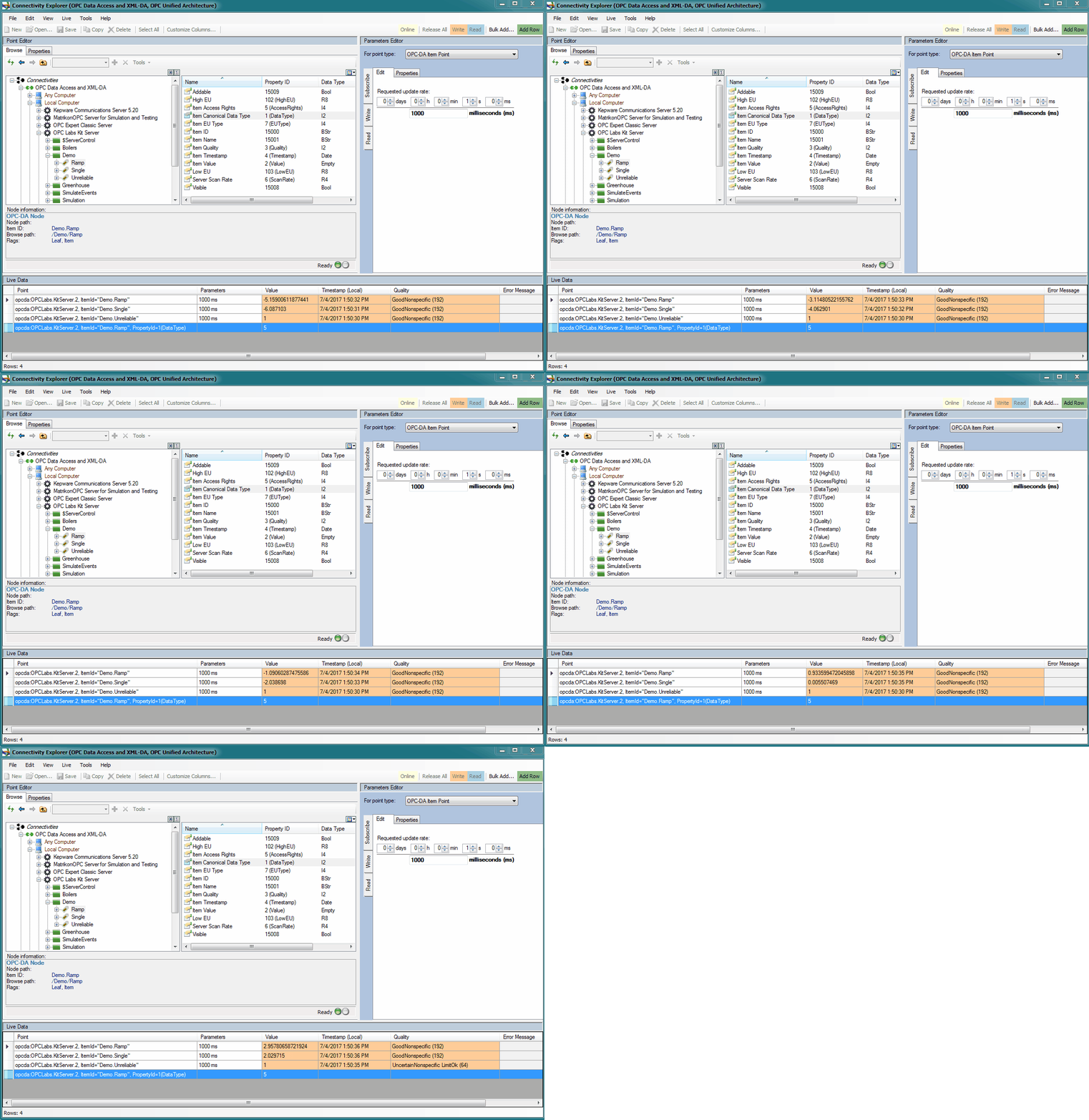
For step-by-step instructions, see Getting Started under Excel in the User's Guide.
Features of Connectivity Explorer (click the picture to enlarge) include:
- Selected data can be transferred to Excel, where it continues to stay subscribed, giving cell values that are dynamically updated with live OPC data.
- Individual points, or a selected set of points, can be read or written to.
- Point parameters can be edited before a subscription, read or write is made.
- Multiple points can be easily subscribed to at once, using the "Bulk Add" command.
- The live view can be turned online/offline with a single push of a button.
- Single cell, or any range of cells can be copied to clipboard and pasted to other programs.
- The currently displayed list of points can be saved to an XML file, or retrieved from a file.
- Various connectivity options can be configured, and the configuration can be in turn used when the same data is accessed by Excel.
Demo OPC Excel Spreadsheet
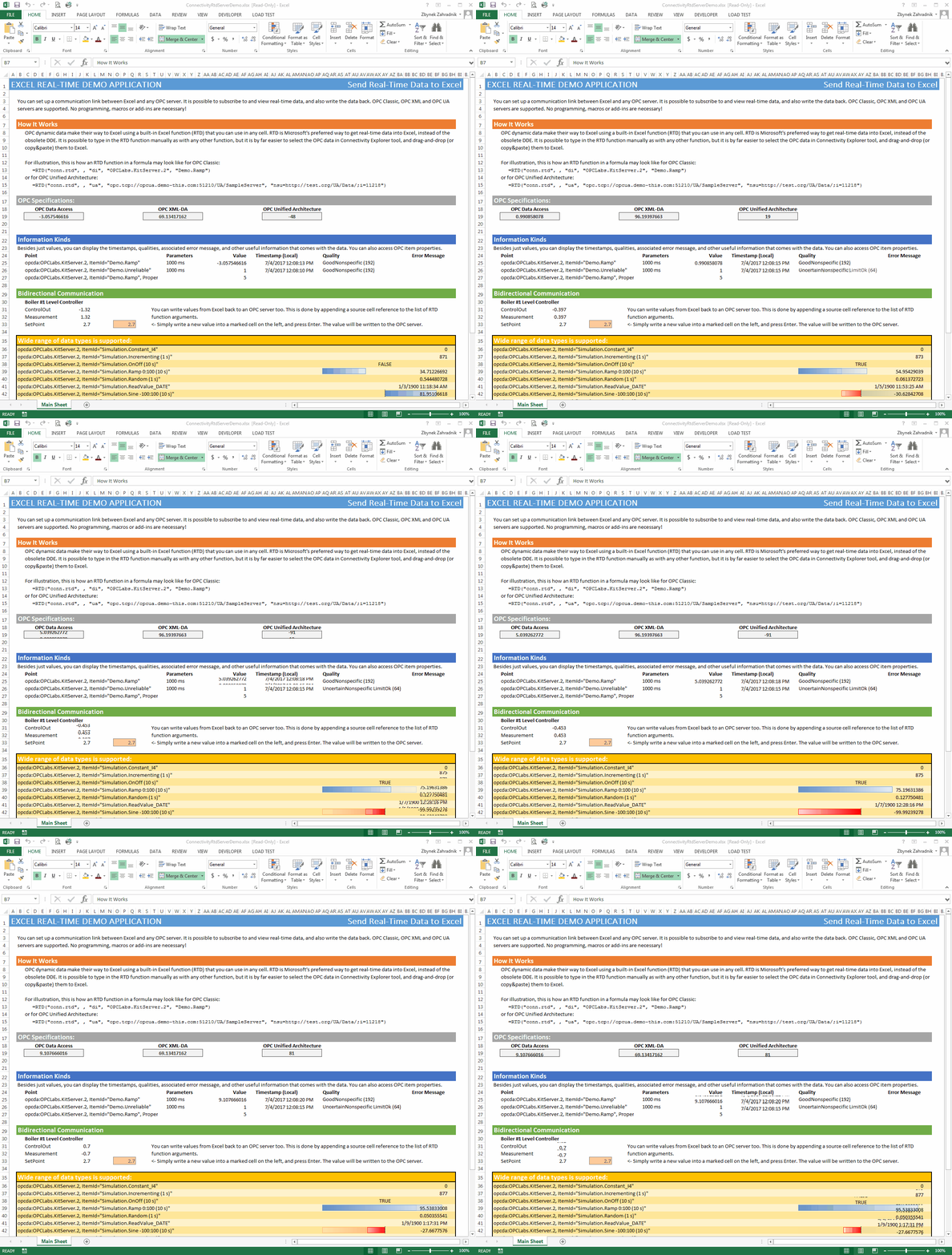 Excel Connector comes with a demo Excel spreadsheet that shows various features of the product (click on the picture to enlarge).
You can use the demo spreadsheet to learn how to get most of the product.
On the spreadsheet, you will find:
- How It Works: Explains RTD functions and their syntax.
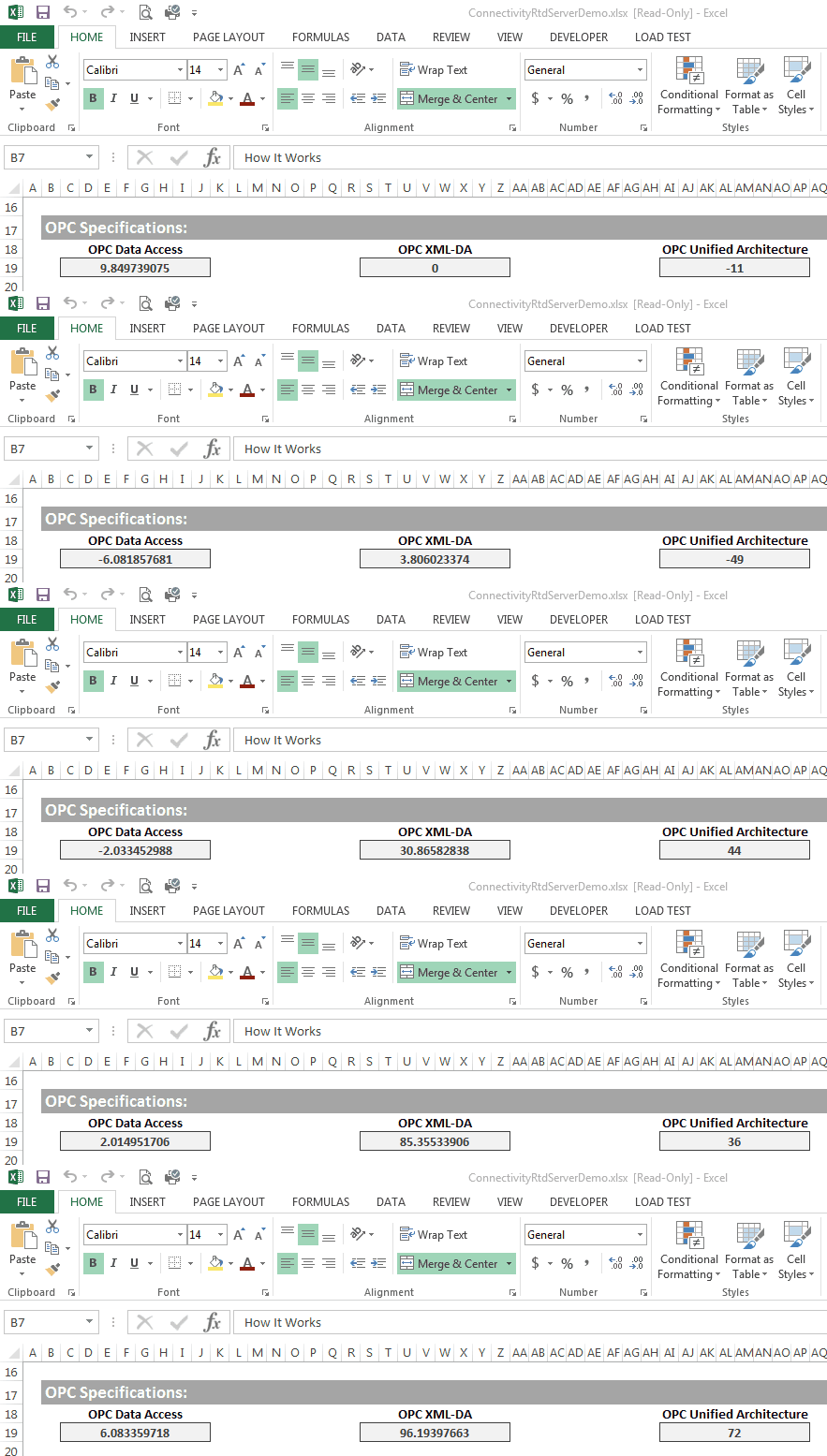
- OPC Specifications: Demonstrates data from various OPC specifications shown in Excel.
- Information Kinds: Values, timestamps, qualities, associated error messages, etc.
- Bidirectional Communication: How to easily write to OPC servers from Excel.
- Data Types: Wide range is supported, and the sheet shows examples of that.
Under The Hood
OPC dynamic data make their way to Excel using a built-in Excel function (RTD) that you can use in any cell. RTD is Microsoft's preferred way to get real-time data into Excel, instead of the obsolete DDE. It is possible to type in the RTD function manually as with any other function, but it is by far easier to select the OPC data in Connectivity Explorer tool, and drag-and-drop (or copy&paste) them to Excel. The RTD function addresses a so-called Connectivity RTD Server, a COM component that is part of the Excel Connector, and this RTD server then performs the necessary communication with the data source.
Useful links: Documentation / Knowledge Base
Rapid Toolkit for Sparkplug
Sparkplug is a trademark of Eclipse Foundation, Inc. "MQTT" is a trademark of the OASIS Open standards consortium. Other related terms are trademarks of their respective owners. Any use of these terms on this site is for descriptive purposes only and does not imply any sponsorship, endorsement or affiliation.
 Rapid Toolkit for Sparkplug allows fast Sparkplug host application and edge node development. It allows you to create Sparkplug software with minimal boilerplate code and programming effort. With Rapid Toolkit for Sparkplug, you do not have to deal with the underlying MQTT protocol and intricacies of the Sparkplug encoding and messaging rules.
The toolkit provides system integrators, OEMs and software developers with ability to create their own Sparkplug components without having to write the code that accurately implements the Sparkplug specification.
 Download fully functional free trial.
Why Rapid Toolkit for Sparkplug?
- Low-ceremony toolkit. No unnecessary boilerplate code.
- Extensive conceptual and reference documentation, including rich IntelliSense support.
- Tons of examples available.
- Allows authenticated MQTT communication, TLS with certificates, TCP and WebSocket connections to the broker.
- Supports Sparkplug A and B, and MQTT 3 and 5.
- You can develop in multiple programming languages. C# and VB.NET are the most common ones.
- You can use .NET Framework or the new .NET.
- Host your program in a console application, desktop application with user interface, Windows service, or otherwise.
- Interoperability tested with common MQTT brokers and Sparkplug components.
- Technical support available in case you encounter any issues.
- Runtime-free licenses (no royalties for distribution).
Show me the code!
Following C# code uses Rapid Toolkit for Sparkplug to implement a fully functional Sparkplug edge node with a metric that provides random integer values.
var edgeNode = new EasySparkplugEdgeNode("mqtt://localhost", "easyGroup", "easySparkplugDemo");
var random = new Random();
edgeNode.Metrics.Add(new SparkplugMetric("MyMetric").ReadValueFunction(() => random.Next()));
edgeNode.Start();
And, following C# code uses Rapid Toolkit for Sparkplug to subscribe to all metrics on a given edge node, and display the incoming data.
var consumer = new EasySparkplugConsumer();
consumer.SubscribeEdgeNodeMetric(new SparkplugHostDescriptor("mqtt://localhost"),
    "easyGroup", "easySparkplugDemo", "#",
    (sender, args) => Console.WriteLine(args));
Key features
- Constructs the payload from your code.
- Ability to subscribe without knowing the list of metrics upfront.
- No artifical limit to the number of edge nodes, devices, or metrics.
- Takes care of generating and interpretaing the Birth and Death messages.
- Offers multiple data consumption and production models.
- Support of 32- and 64-bit applications.
- Operation monitoring services for easier troubleshooting.
- Can be used from a range of development tools and IDEs. Integration with Visual Studio development environment.
- Comes with a set of accompanying tools such as test clients.